
Guide
By The QRdy Team · June 2026
How customers use QRdy from scan to done
When a business uses QRdy, you scan one QR code, get a live page showing your job status, and see it update in real time as the work progresses. No app. No account. No need to call and ask.
This guide walks through the full experience from the moment you scan to the moment your job is marked done.
Step by step
The full customer flow
The entire process takes about 30 seconds. After that, everything happens automatically.
- 1
Scan the QR code at the counter
Open your phone camera and point it at the QR code the business has on display. A link will appear on your screen. Tap it. No app to download, no account to create.
- 2
Enter your name and choose notifications
A short check-in form opens in your browser. Enter your name or order reference. You can also choose whether you want a notification when your job is ready. Browser push notifications are available on all plans. WhatsApp and email are available when the business is using QRdy on a subscribed plan.
- 3
Your live status page opens immediately
As soon as you submit the form, your personal status page appears. It shows the current stage your job is at and the stages still ahead. Bookmark this page or leave the tab open.
- 4
Watch the status update in real time
As the business works through the job, they tap through each stage from their dashboard. Your page updates automatically. You do not need to refresh it.
- 5
Get notified when your job is ready
If you opted in to notifications, your phone will alert you when the business marks the job as complete or ready for collection. No need to call or walk back to check.
- 6
Collect your item or return when ready
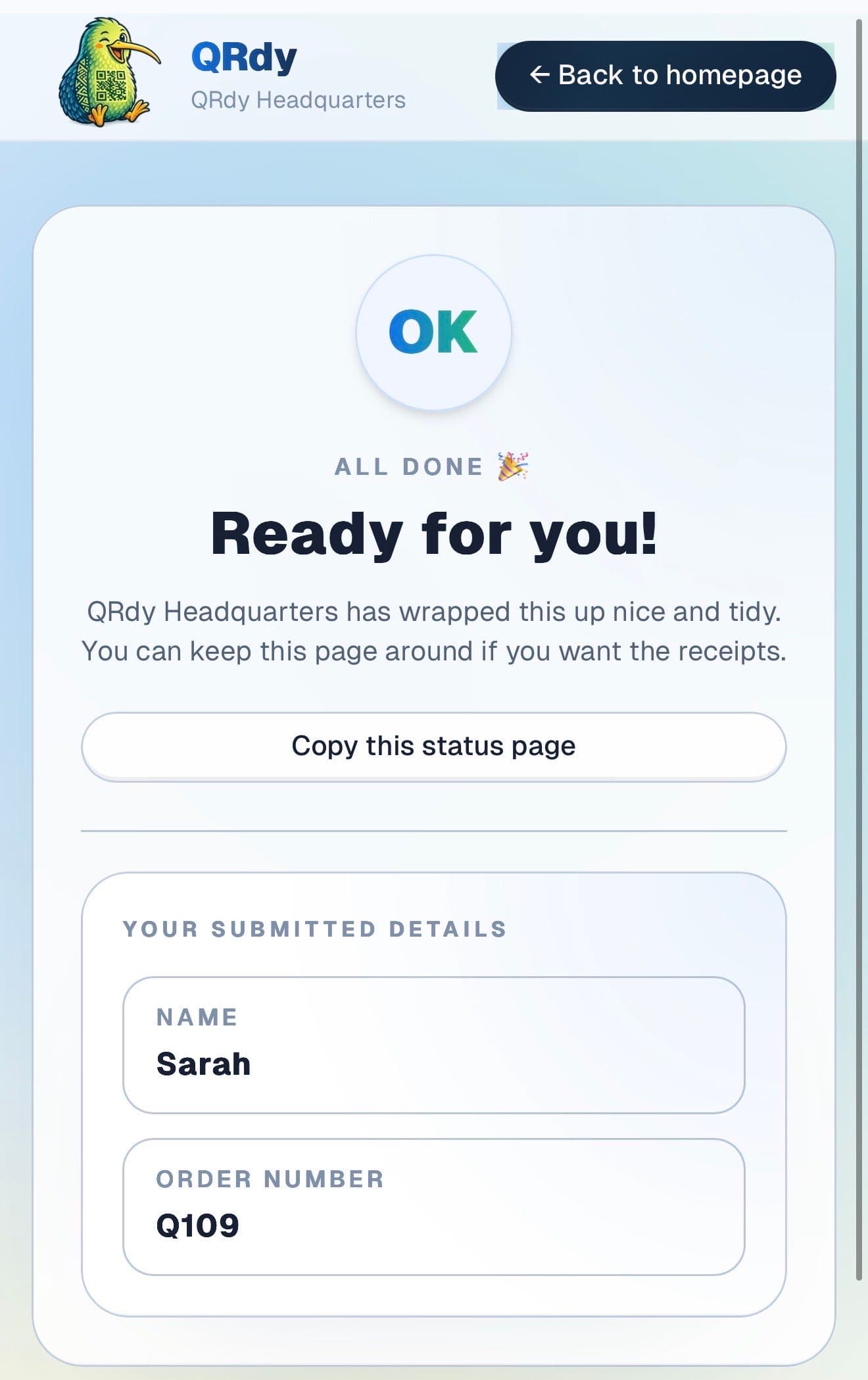
The status page will show when the job is done. Come back then. The completed page stays visible so you have a record of the final status.
What you see
Your live status page
Once you check in, your status page shows you exactly where your job is. The current stage is highlighted and the stages still ahead are visible. When the business moves the job forward, the page updates without you needing to refresh.
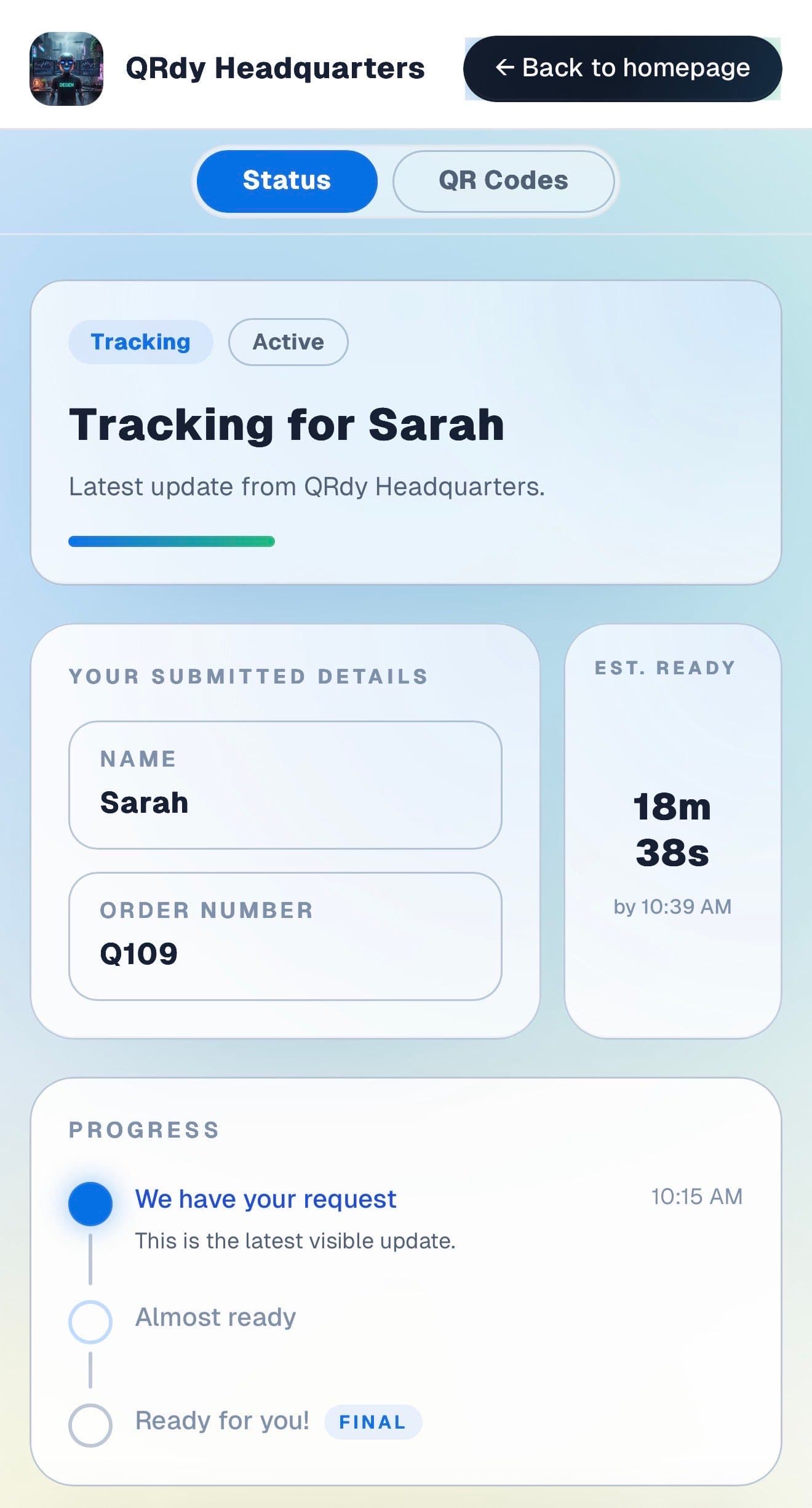
When the job is complete, the page updates to show the finished state. You can come back to this page any time during the retention window.
Notifications
Getting notified when your job is ready
During check-in, you can choose how you want to be notified. Browser push notifications are free and work on any device. WhatsApp and email notifications are available when the business is using QRdy on a subscribed plan.
You can also enable browser notifications from your status page after you open it. Look for the notification button on the page if you did not opt in at check-in.
If you prefer not to use notifications, just check the status page directly. It updates automatically so whatever you see is the current state.
Common questions
Questions customers ask
Do I need to download an app to use QRdy?
No. QRdy works entirely in your phone browser. You scan the QR code with your camera, tap the link that appears, and the status page opens directly. There is nothing to install and no account to create.
What happens if I close the status page?
The page does not disappear when you close it. It is a regular URL that stays active until the job is finished. Bookmark it when you first open it. If you opted in to notifications, the link will also be in every notification you receive. If you lose it entirely, ask the business and they can share it again.
Will I be notified when my job is ready?
If you chose browser push, WhatsApp, or email notifications during check-in, you will receive a notification when the business marks your job as ready. If you did not opt in to any notifications, you can check the status page directly or enable browser push from the page after you open it.
What does cancelling a tracker mean?
Cancelling the tracker closes the live status page for your job. It does not automatically cancel your order, repair, or booking. If you want to cancel the actual job, you need to contact the business directly.
Ready to stop answering the same status question all day?
QRdy gives customers a live page instead of another reason to call, text, or hover at the counter. Free to start. No credit card. Live in under a minute.